Devvio WC Quick Gallery
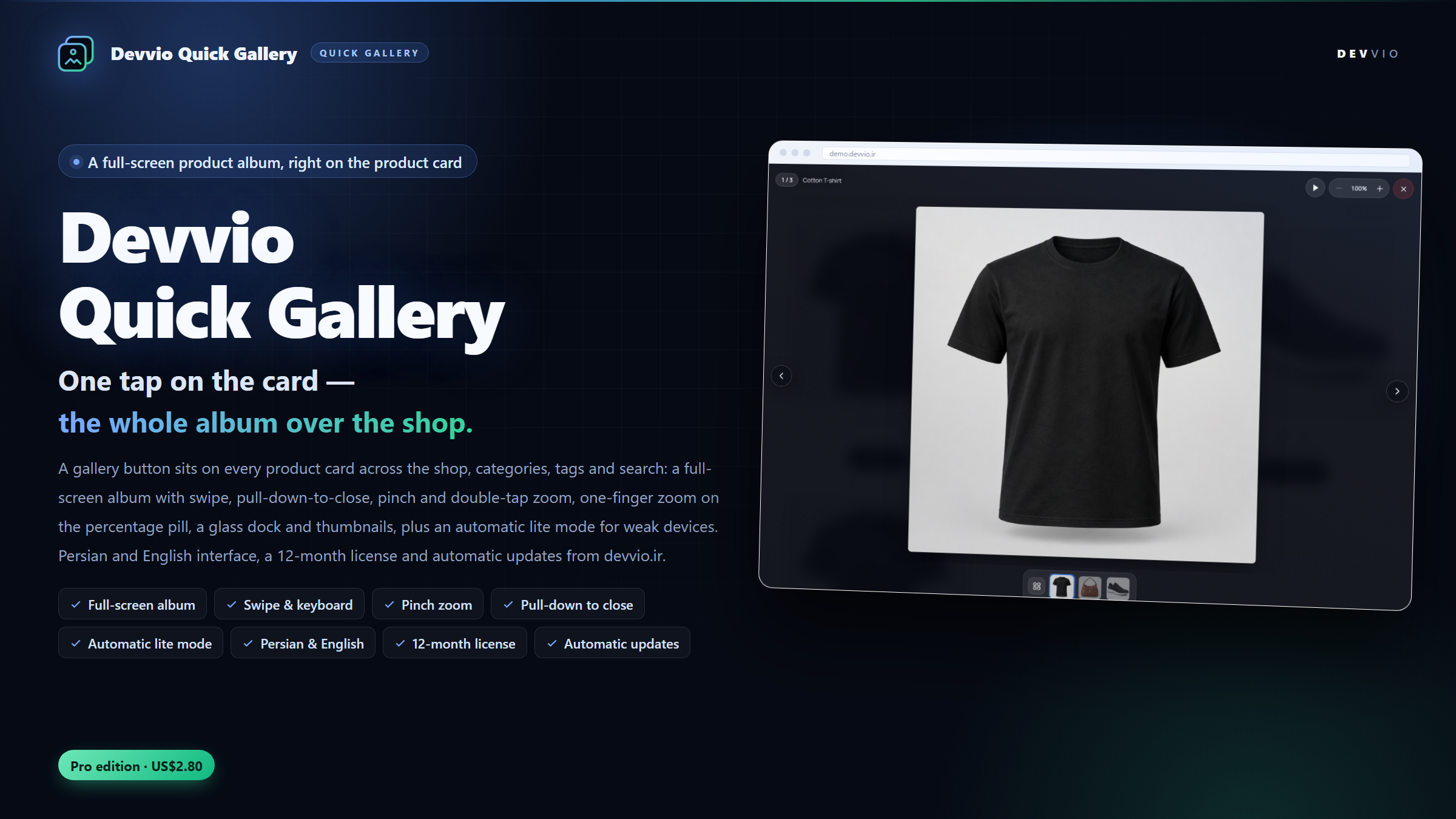
Devvio WC Quick Gallery is a WordPress and WooCommerce plugin that puts the product's whole image album on the product card itself: one tap on the gallery button opens a full-screen viewer over the shop, where shoppers swipe, pinch-zoom, double-tap, drag the percentage pill and pull the image down to close — without opening the product page or losing their place in the list. The plugin ships as a Pro edition only and needs an active devvio.ir license for the same domain; the viewer, the settings panel and every message are fully English and Persian and follow LTR/RTL automatically. Developed and supported by the Devvio development team — devvio.ir . Why a gallery on the product card? WooCommerce shows a single thumbnail in the product loop. To see anything else, a shopper has to open the product page, wait for it to load, and then navigate back to the same place in the list. For products whose details live in the photos — clothing, jewellery, decor, industrial parts — that round trip is where the second image never gets seen. This plugin opens the album in place: swiping, zooming and closing all happen over the loop, and when the viewer closes the shopper is exactly where they were. What the shopper gets A full-screen album over the loop The gallery button renders after the product link , so tapping it never navigates to the product page and the original link stays untouched. Every image of the product in one glassy full-screen viewer, with the product title, an image counter and a thumbnail strip. On desktop: arrow keys, + / − , the mouse wheel and Esc . On mobile: the phone back button closes the gallery too. Looping can be turned off — after the last image the viewer either returns to the first or stops there. Swipe to browse, drag to close Swipe left or right for the next or previous image; the thumbnail strip swipes on its own so gestures never fight each other. Drag the image down and the backdrop fades live: release before the threshold and it springs back, release past it and the gallery closes softly. A touch handle above the album does the same with a tap, and tapping the empty area closes the viewer. Zoom that respects fingers Pinch zoom with panning of the zoomed image, plus double-tap zoom with a configurable factor. The percentage pill cycles 1× / 2× / 3× on tap and zooms continuously when dragged. + / − buttons with a configurable step and ceiling (0.5 and 4× by default). The full-resolution file is fetched only when a visitor actually zooms; neighbouring slides are preloaded during idle time. Slideshow that respects the visitor When enabled, the slideshow starts on open, pauses on the first touch or zoom, and its play button stays available at all times. If the visitor has prefers-reduced-motion on, the slideshow never starts by itself. A bilingual, RTL-aware interface Every label (close, next, zoom, thumbnails, counter…) is served in English or Persian based on the site language, the user profile or the manual choice in settings. In Persian the buttons and arrows mirror, and navigation follows the right-to-left flow of the text. What the store owner controls Active pages Enable the gallery on the shop, categories, tags, home/blog, search results or every page (shortcodes and page builders). The single product page is left untouched and keeps using WooCommerce's own gallery. The trigger button Always visible, on hover (always visible on touch), or hidden on touch devices. Any of the four card corners, aware of the text direction (start/end); four icons: gallery, magnifier, expand and preview eye. An image-count badge and a custom accent colour for the active thumbnail border, buttons and indicators. Performance and images Choose the served image size (medium, large or full) and load the original file only on zoom. Performance mode: Automatic detects weak hardware and dropped frames and switches to Lite (no blur, lightest compositing), Lite forces it, High keeps every effect. The script has no jQuery dependency, renders inside requestAnimationFrame and caches the stage size. If a configured intermediate size is missing, the nearest available size is used instead of dropping the photo; WebP/AVIF twins are supported through the devvio_modern_image_url filter. Self-maintaining cache Each product's album is cached in that product's meta and flushed automatically when the product, its gallery, an attachment, the alt text or the generated sizes change. A manual "Clear gallery cache" button sits on the settings tab. License, updates and support Every purchase includes twelve months of updates and support from activation. When the license expires, the gallery you installed keeps working on your site; only new downloads and automatic updates pause. Renewal costs 25% of the current Pro price and adds twelve months from the later of the renewal date or the expiry date, so renewing early never loses time. The Plugins screen asks https://devvio.ir/api/updates/check twice a day, shows what changed from the release feed, and installs the package that matches your version. Every download is verified against the published size and SHA-256 hash before it replaces anything. Activation, heartbeat and deactivation travel over HTTPS under /api/plugin/* , and the license is bound to the key, the site identity and a stable installation id. Short announcements from the Devvio team ride along with the update response and appear as dismissible admin notices — no code is ever executed and every field is escaped. Privacy The only data that leaves your site for devvio.ir is the license heartbeat and update check: site URL, domain, installation id, plugin/WordPress/PHP versions and, for Pro, the license key. No customer data, order data or visitor analytics leave the site. Security and data integrity All settings are saved behind a nonce and the manage_options capability, and every field is validated against its own type. Gallery data is validated before rendering; an invalid or deleted attachment id never breaks the viewer. Nothing from remote responses is executed; notices are escaped, dismissible text only. uninstall.php removes the settings, license, cache and notice state, leaving no rows behind in the database. Compatibility Works with themes that render the WooCommerce loop through the standard hooks (including Blocksy, Astra and Elementor). The album is cached in meta, so a full-page cache only needs its usual purge. Without JavaScript the product card is a normal link, and no content is hidden from search engines. Installation and getting started In the WordPress dashboard go to Plugins → Add New → Upload Plugin , choose devvio-wc-quick-gallery-3.1.0-pro.zip , then install and activate it. WooCommerce must be installed and active; otherwise the plugin only shows a notice and never touches the storefront. On WooCommerce → Quick Gallery → License , paste and activate the key you received from devvio.ir; until the key is confirmed for this domain, the gallery button is not rendered on the storefront. On the Settings tab, set the active pages, the trigger appearance, the gestures, the interface elements and performance; the Help tab explains every gesture and every setting. Minimum requirements WordPress 5.6 or later, PHP 7.2 or later and WooCommerce 4.0 or later. Version 3.1.0 has been tested with WordPress 7.1 and WooCommerce 11.2. Development and support This plugin is built and supported by the Devvio development team and is released together with the devvio.ir license and update system. Product page, pricing, release history and support: devvio.ir/products/devvio-wc-quick-gallery
Frequently asked questions
What does Devvio WC Quick Gallery do?
It opens the product's full image album right on the product card in the shop, categories, tags and search results. One tap on the gallery button shows a full-screen viewer where shoppers swipe, pinch-zoom, double-tap, drag the percentage pill and pull the image down — without opening the product page or losing their place in the list. Version 3.1.0 is published as a Pro edition only.
Do shoppers still have to open the product page to see the gallery?
No. The gallery opens over the product card, and when it closes the shopper is exactly where they were in the list. The single product page is left untouched and keeps using WooCommerce's own gallery.
Does the gallery button conflict with the product link?
No. The button renders after the product link and is a real button, so tapping it never navigates to the product page while the original link keeps working. Without JavaScript the product card is a normal link and no content is hidden.
Where can the gallery be enabled?
The shop, product categories, product tags, the home/blog page, search results, or every page (for shortcodes and page builders). Each can be switched on or off individually, and the single product page is always excluded.
Which gestures work on mobile?
Horizontal swiping, pinch zoom with panning of the zoomed image, double-tap zoom, dragging the percentage pill to zoom continuously with one finger, pulling the image down to close with a live backdrop fade, the touch handle, closing by tapping the empty area, and the phone back button. Every gesture can be switched off separately in settings.
How does it work on desktop?
Arrow keys for the next and previous image, + and − keys to zoom, the mouse wheel, Esc to close, and clickable navigation buttons and percentage pill. The slideshow is controlled from the play button in the glass dock.
Does the slideshow start automatically?
When enabled, it starts when the gallery opens and pauses on the first touch or zoom; the play button always stays available. If the visitor has prefers-reduced-motion on, the slideshow never starts by itself.
Does the gallery slow the site down?
The script has no jQuery dependency, renders inside requestAnimationFrame and caches the stage size. The served image size is selectable, the full-resolution file is fetched only on zoom, and neighbouring slides are preloaded during idle time. Automatic performance mode detects weak hardware and dropped frames and switches to Lite (no blur), while Lite and High modes can be selected manually.
What happens if an intermediate image size is missing?
The nearest available size is used instead and the photo is never dropped. If an image optimizer provides WebP or AVIF twins, they are used through the devvio_modern_image_url filter.
How is the gallery cache managed?
Each product's album is cached in that product's meta and flushed automatically when the product, its gallery, an attachment, the alt text or the generated sizes change. A manual 'Clear gallery cache' button is on the settings tab; a full-page cache only needs its usual purge.
Do I need a license key to use it?
Yes. The plugin is published as a Pro edition only, and until a devvio.ir key is active for your domain the gallery button is not rendered on the storefront. Activation, heartbeat and deactivation run over HTTPS, and the license is bound to the key, the site identity and a stable installation id.
What happens when the license expires after a year?
The gallery you installed keeps working on your site; only new downloads and automatic updates pause. To receive new downloads, renew the license for 25% of the current Pro price and twelve months are added from the later of the renewal date or the expiry date.
How are updates installed?
The Plugins screen asks https://devvio.ir/api/updates/check twice a day, shows what changed from the release feed, and installs the package that matches your version. Every download is verified against the published size and SHA-256 hash before it replaces anything, and an update never changes the installed version.
What data leaves my site for devvio.ir?
Only the license heartbeat and update check: site URL, domain, installation id, plugin/WordPress/PHP versions and, for Pro, the license key. No customer data, order data or visitor analytics leave the site.
Is it compatible with themes and page builders?
It works with themes that render the WooCommerce loop through the standard hooks — including Blocksy, Astra and Elementor. Because the album is cached in meta, a full-page cache only needs its usual purge.
What are the minimum requirements and how do I start?
WordPress 5.6 or later, PHP 7.2 or later and WooCommerce 4.0 or later. Install and activate devvio-wc-quick-gallery-3.1.0-pro.zip from Plugins → Add New → Upload Plugin, activate your key under WooCommerce → Quick Gallery → License, then choose the active pages and trigger appearance on the Settings tab. Version 3.1.0 has been tested with WordPress 7.1 and WooCommerce 11.2.
Select edition